
Create Your Academy
~3 minutesGo to academyos.co.uk/onboard. 5 fields and a password, then submit. We create your branded portal, your Stripe Connect Express account, and your Head Coach login in one transaction.
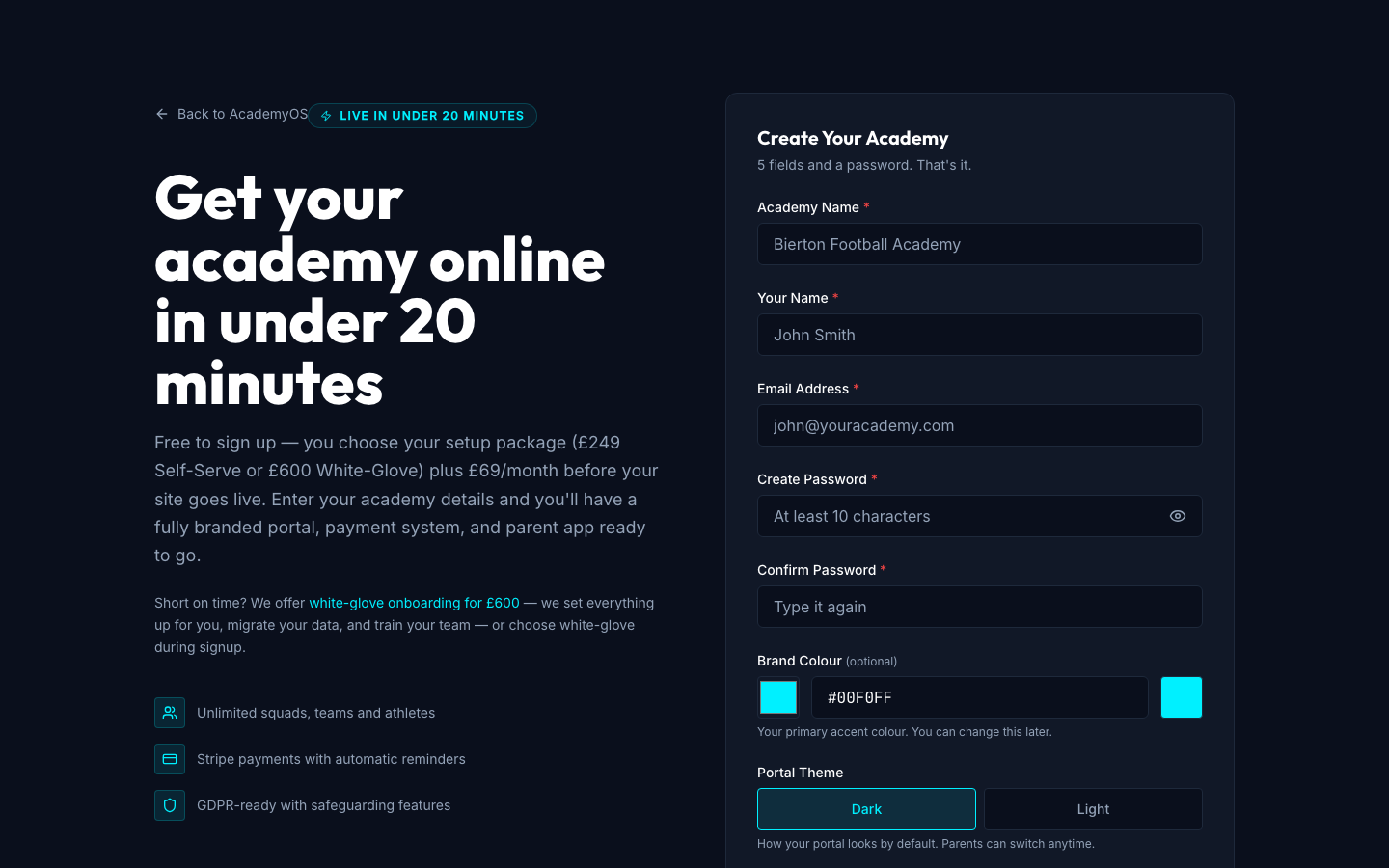
Fields explained
Your academy's full name — e.g. "Bierton Football Academy". Appears across the navbar, parent portal, emails, and SEO. Auto-generates a URL slug like bierton-football-academy.academyos.co.uk.
The Head Coach or academy director — you. You'll be set up as Head Coach with full admin access; you can invite assistant coaches later.
Where the confirmation link goes and where all admin notifications land. Use one you check daily.
At least 10 characters. Confirm it on the next field. This is the password you'll use to log in to your admin dashboard.
Hex code or colour-picker. Defaults to AcademyOS cyan (#00F0FF). Most academies use their kit colour — applied instantly to buttons, accents and links across your portal.
Default look for parents and coaches. Dark works for most kit palettes; pick Light if your brand is white/pastel. Parents can override this themselves from their portal settings.
- Your custom URL is shown live as you type the academy name.
- Short on time? The "white-glove onboarding for £600" link on the form gets us to do all of this for you, including data migration and a training session.
- After submitting, you land on a success screen with a "Complete Stripe Setup" button. Click it — that's the next required step.
- Use a real email — you must click the confirmation link before you can log in.
- Academy name and slug cannot be changed later. Double-check the spelling before submitting.
Complete Stripe Setup
~5 minutesOn the success screen, click "Complete Stripe Setup". Stripe's hosted KYC flow opens and asks for business details, ID, and your bank account. Until KYC clears, parents who try to register get a friendly "we'll email you a payment link" fallback instead of being able to pay.
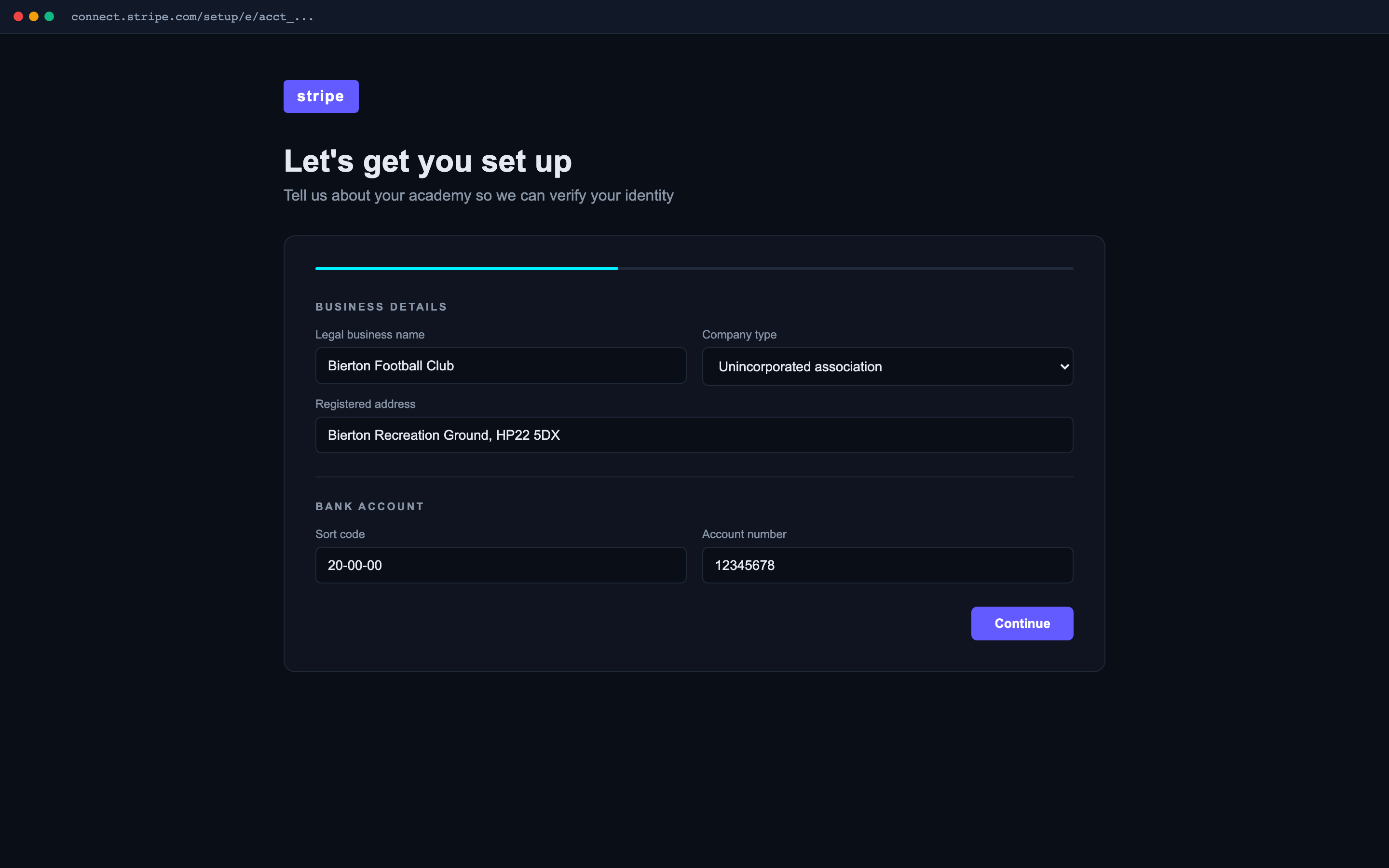
Fields explained
Legal name, address, and entity type — limited company, non-profit, or sole proprietorship. All accepted.
Name, date of birth and address of the person responsible for the account. Standard FCA-regulated KYC.
UK sort code + account number. Payouts from parent payments land here automatically on Stripe's schedule.
Driving licence or passport. Upload from your phone — Stripe shows a QR for it on desktop.
- If you close the Stripe tab mid-way, click "Resume Stripe Setup" on the success screen — we mint a fresh onboarding link.
- Approval is usually instant. Newer entities can take up to 24 hours.
- When KYC clears, AcademyOS does TWO things automatically: flips your dashboard tile to ✅, and provisions a Stripe Customer Portal config on your connected account so parents can self-serve cancel/update card on subscriptions. You don't have to touch the Stripe Dashboard.
- Registrations go through Stripe Checkout the moment KYC clears. Don't hand out the registration link until your dashboard tile is green.
- Stripe Connect is available in 40+ countries, but the academy bank account must match the country you choose during signup.
Confirm Your Email
~1 minuteCheck your inbox for a confirmation email from Supabase (subject usually starts with "Confirm your signup"). Click the link to verify the address and unlock login.
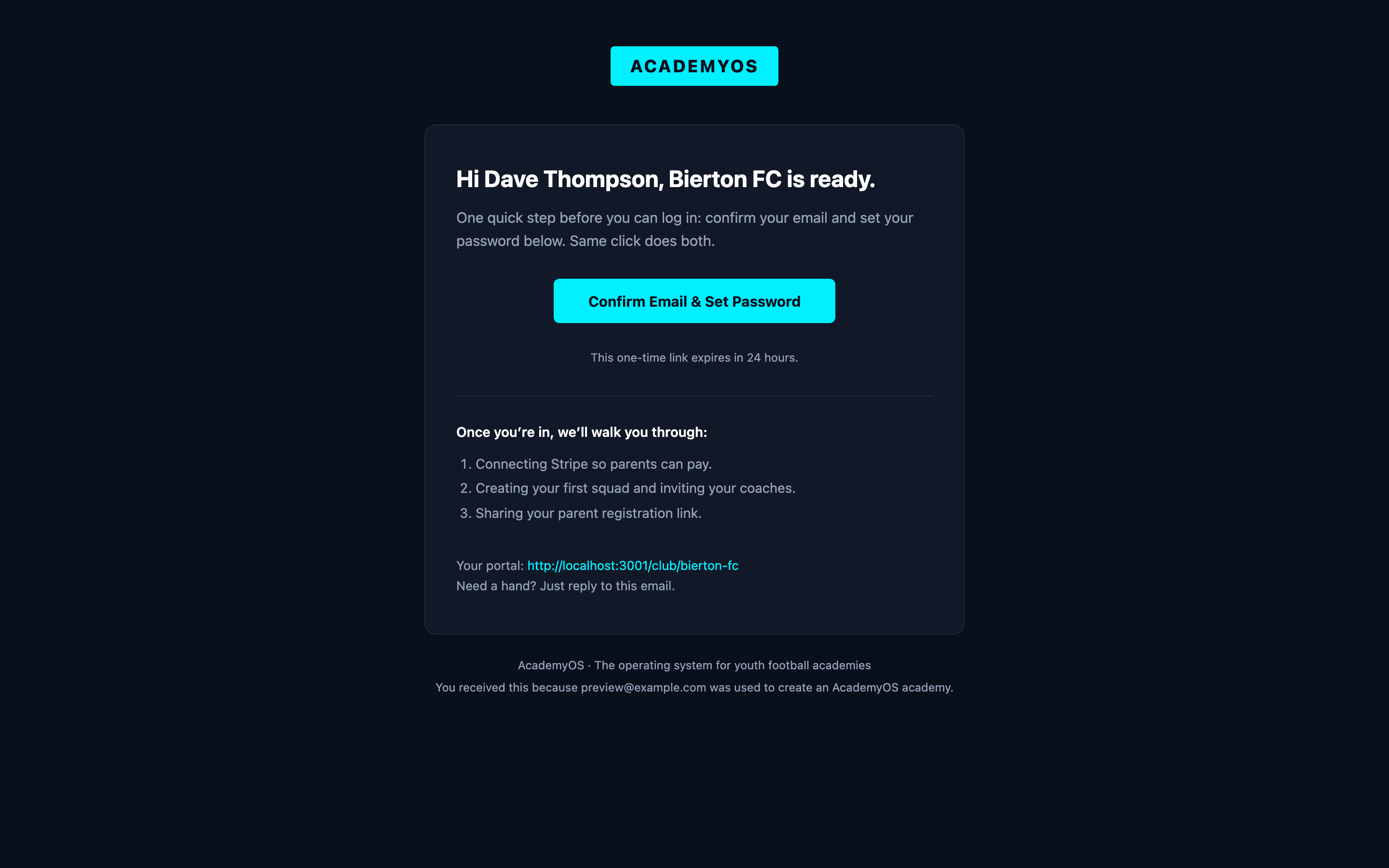
Fields explained
Click it once. You're routed to your academy's staff login page with a confirmation banner.
- Check spam if you don't see it within 2 minutes.
- The link expires after 24 hours. If it does, go to the staff login page and click "Forgot Password" — that triggers a fresh link.
- You cannot log in until the email is confirmed. The login form will reject the credentials with a "please confirm your email" error.
Log In to Your Dashboard
~30 secondsGo to youracademy.academyos.co.uk/staff/login (or click "Log In" from the navbar of your tenant). Sign in with the email and password you set during signup.
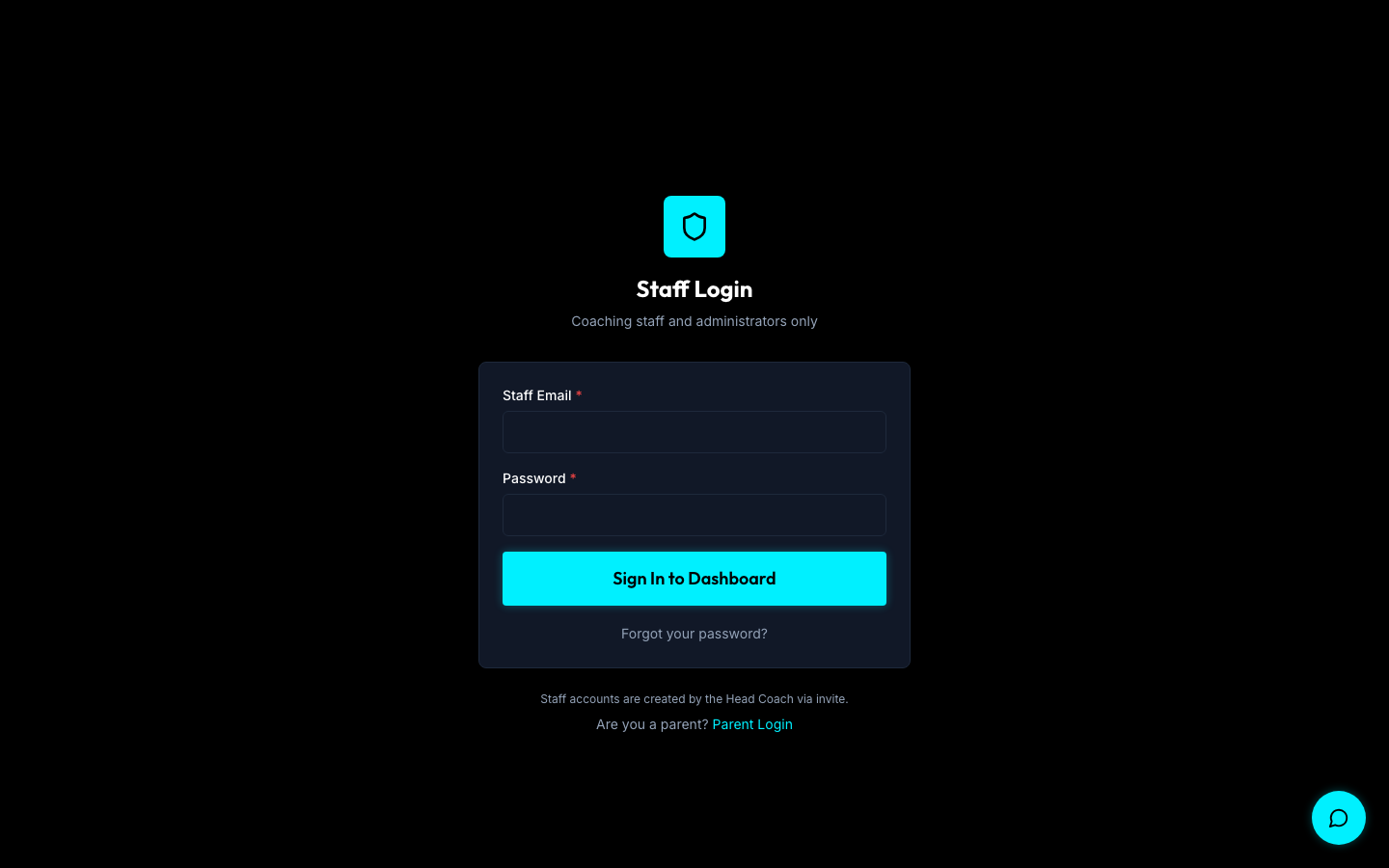
Fields explained
youracademy.academyos.co.uk/staff/login. Bookmark it.
Same credentials you set during signup.
- Forgot password? Click the link on the login page — Supabase sends a reset email.
Your Onboarding Checklist
OverviewOnce logged in, the admin dashboard shows a five-step checklist at the top. It tracks exactly what's left before you can hand the registration link to parents. Each tile flips to ✅ as you complete it. The five tasks below correspond one-to-one with the dashboard tiles.
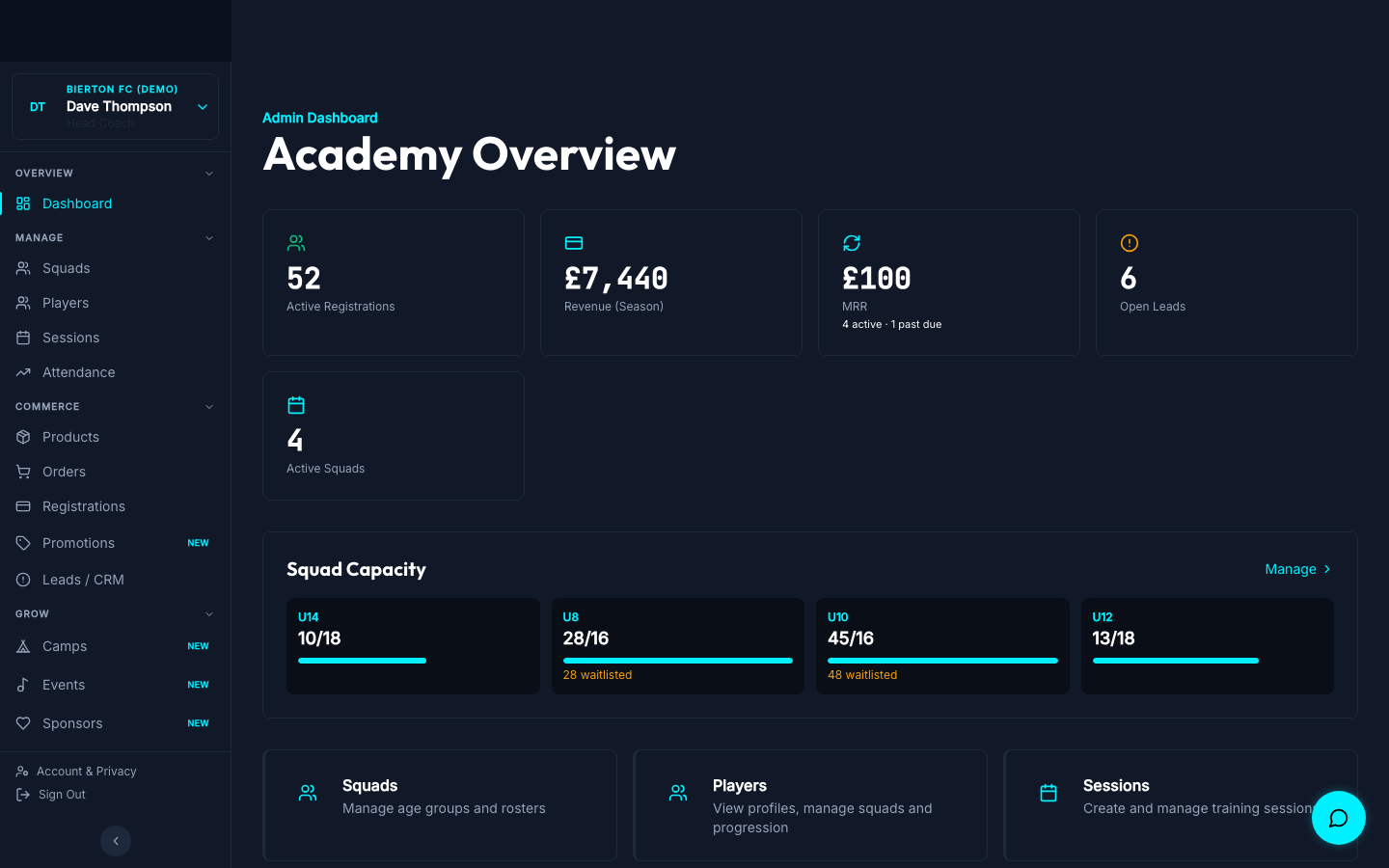
Details
Done automatically during signup — listed for completeness.
Step 2 above. Tile flips when KYC clears via Stripe webhook.
Step 6 below.
Step 7 below — the new bit since registration plans landed.
Step 8 below. Optional in practice but recommended.
- The checklist is dismissable but stays useful — you can pull it up anytime by reloading the dashboard.
- Head Coaches see the full checklist. Team Coaches don't — it's strictly a Head Coach setup tool.
Create Your Squads
~5 minutesSquads are the age-group or team containers your players sit in. You need at least one before parents can register. Create them at /admin/squads.
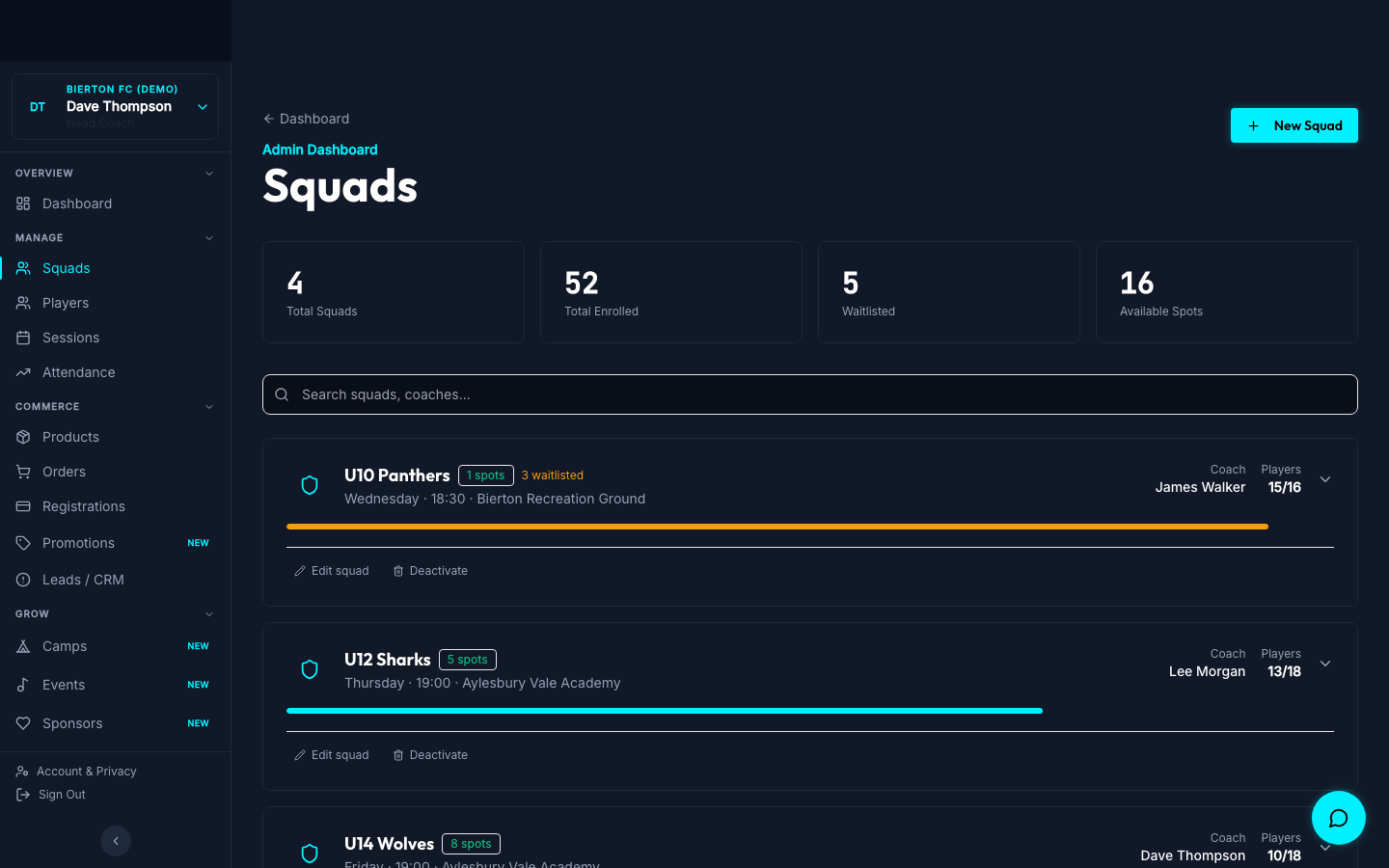
Details
e.g. "U10 Panthers", "U8 Development". Visible to parents on the registration wizard.
e.g. "U10". Used for filtering, schedule grouping, and capacity dashboards.
Default 16. Once full, new registrations land on the waitlist automatically — no spillover sales.
e.g. "2025-2026". Lets you carry players forward season-over-season.
Shown on the public schedule and in parent portal calendars.
Address used in session reminder emails and on /schedule.
Set a primary coach (and optional assistants from the Squad detail page). Team Coaches only see data for squads they're on.
- Create all squads upfront. The registration wizard pulls from this list, so missing squads = parents can't pick them.
- No limit on number of squads. You can edit name, capacity, day/time at any point.
- The /squads public page is now live data — empty until you create your first squad.
- If a squad is full and a parent registers, they go on the waitlist. When a place opens, you're notified — by email and in the admin bell — with who is next in line, and you offer the place directly.
Set Up Registration Plans
~5 minutesA "registration plan" is a product (under Commerce → Products) that you've flagged with "Show on the parent registration wizard". You decide what plans appear on /register — trial, single term, full season, monthly subscription, anything. No more hardcoded prices.
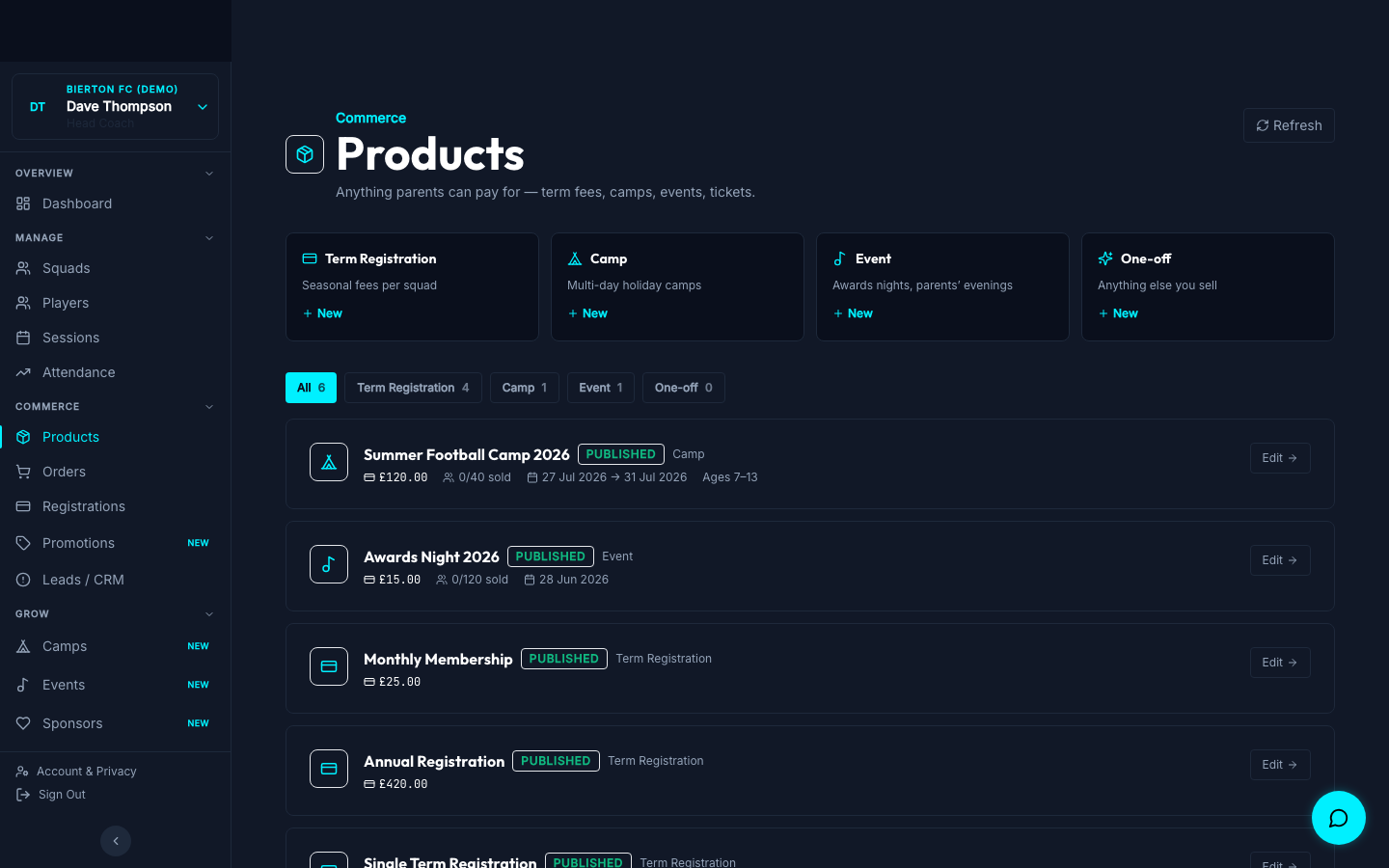
Details
Tick "Show on the parent registration wizard" in the product create/edit modal. Until you do, the product only sells through the standalone /shop.
One-off (single charge via Stripe Checkout) OR monthly / quarterly / annual (recurring via Stripe Subscriptions — see Step 9).
Optional. e.g. set to 7 and the first 7 days are free; first charge happens after the trial ends.
Lower numbers appear first on the wizard tile grid. Use 10/20/30 to control order; default 100.
Standard product fields. Markdown supported in description.
- Recommended starter set: Trial £10 (one-off) + Term £150 (one-off) + Annual £420 (one-off). Add Monthly later if you want auto-renewal.
- Coach Commerce Setup guide has the full pricing playbook + tax/payout notes.
- The fifth tile on your onboarding checklist tracks this — it ticks as soon as you have at least one published plan.
- Until you publish at least one registration plan, the wizard at /register shows "No plans available — please contact the academy". Make sure you have one live before you advertise registrations.
Invite Coaching Staff
~3 minutesInvite assistant coaches from /admin/staff. Each gets their own login with role-based access — Head Coaches see everything, Team Coaches see only their assigned squads.
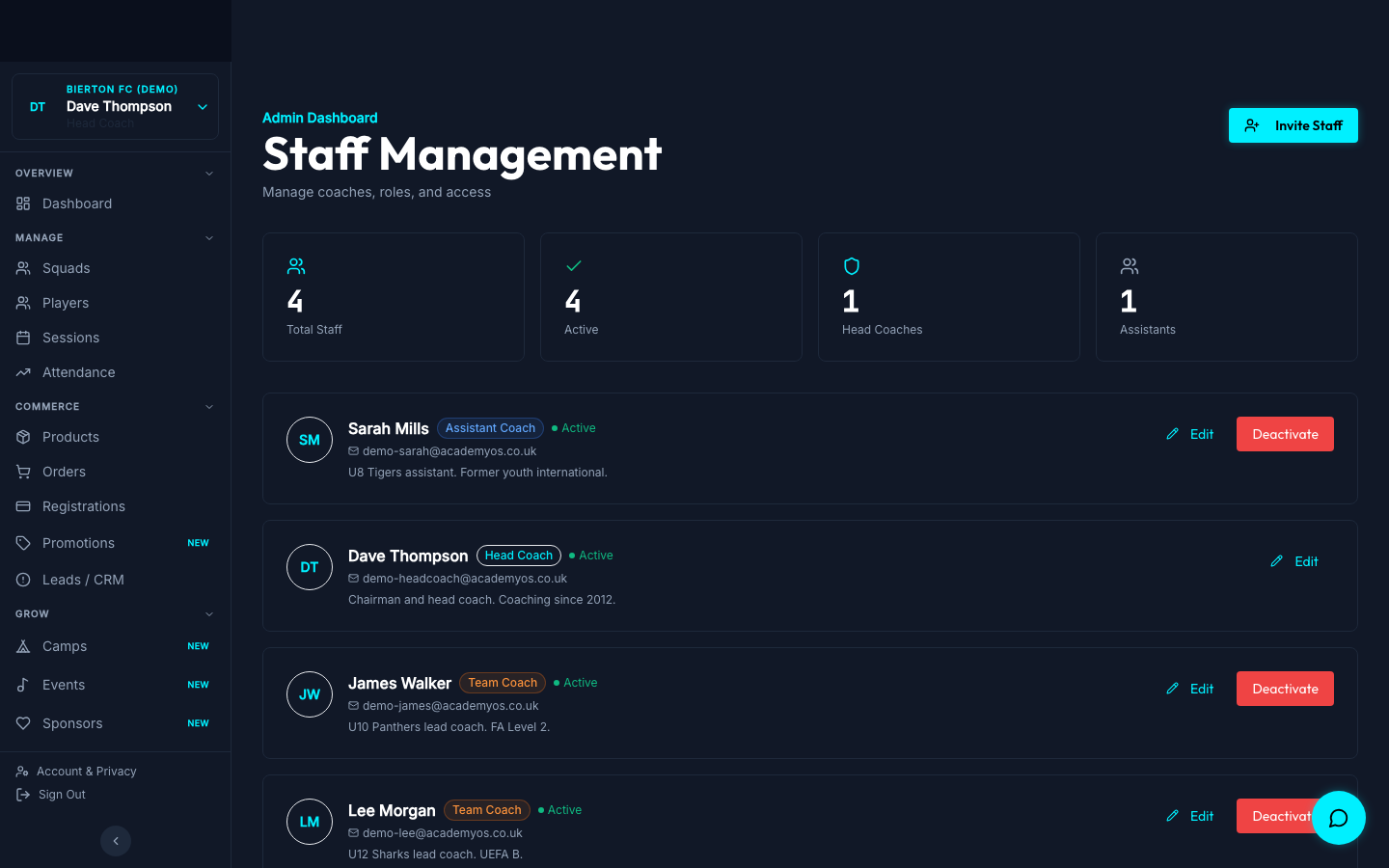
Details
Coach receives a Supabase invite email; they click, set a password, they're in.
Head Coach (full access, sees finances), Team Coach (squads only, no finances), Assistant Coach (limited write), Goalkeeper Coach, Admin.
After the coach accepts, assign them to specific squads from the Squads page. Their attendance + sessions surface only for assigned squads.
- Use Head Coach sparingly — typically just chairman + main head coach. Everyone else should be Team Coach or below.
- Coaches can mark attendance from their phone on the sideline. No laptop needed.
- Only Head Coaches and Admins can invite new staff or view financial data (revenue, MRR, refunds, payouts).
If You Want Recurring Plans (Subscriptions)
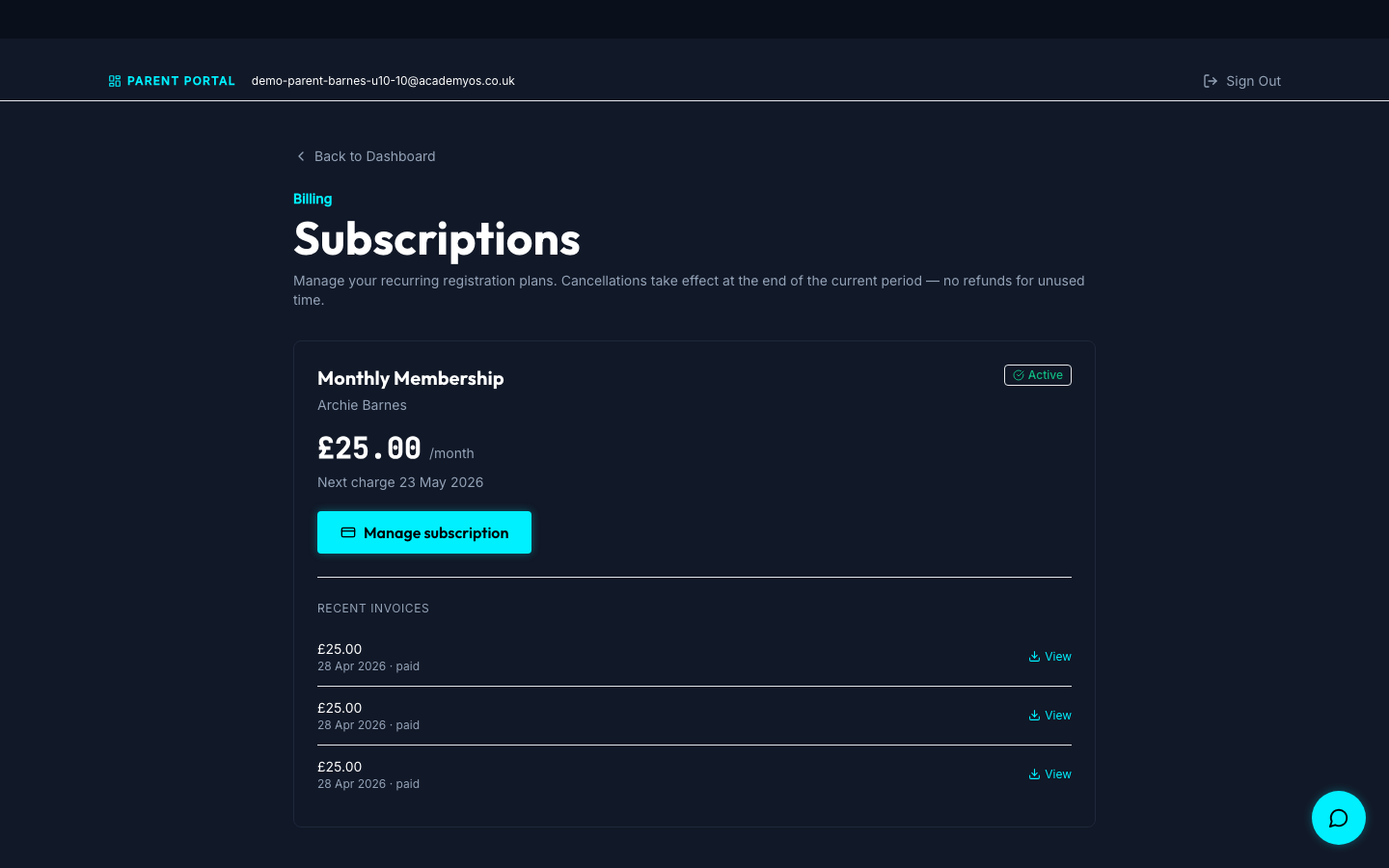
~2 minutesWant parents to be auto-charged monthly? Create a registration plan in Step 7 with "Monthly" (or "Quarterly" / "Annual") billing interval. AcademyOS routes the parent through Stripe Checkout in subscription mode and Stripe auto-charges them on that cadence going forward. They self-serve cancel and update card from their portal.
Details
One-off plans = single Stripe Checkout charge. Recurring plans = Stripe Subscription, auto-charged forever until cancelled. Same platform fee on every recurring charge (3%, or 1.5% when a single charge is £1,000 or more).
Set "Free trial days" on the plan (e.g. 7) and Stripe holds back the first charge until the trial ends. Cancel during the trial = nothing charged.
/portal/subscriptions on every parent account. "Manage subscription" button → Stripe-hosted Billing Portal → cancel-at-period-end + update payment method. AcademyOS auto-configures this on your connected account when KYC clears; you don't touch the Stripe Dashboard.
When a card fails, Stripe smart-retries automatically. If the retry window exhausts, the registration is auto-suspended (status=inactive) and both you and the parent are emailed.
Dashboard MRR tile (active + trialing subs normalised to monthly), past-due count, and a subscription-status badge column on the Registrations table.
- See the Recurring Subscriptions section of the Coach Commerce Setup guide for the full subscription lifecycle, including how cancellations and refunds work.
- Stripe sends parents an automatic receipt email after every successful charge. We don't double-send.
- Pricing changes affect new signups only. Existing subscribers keep paying the price they signed up at — by design, so you can run promo prices without breaking active accounts.
Create Sessions & Fixtures
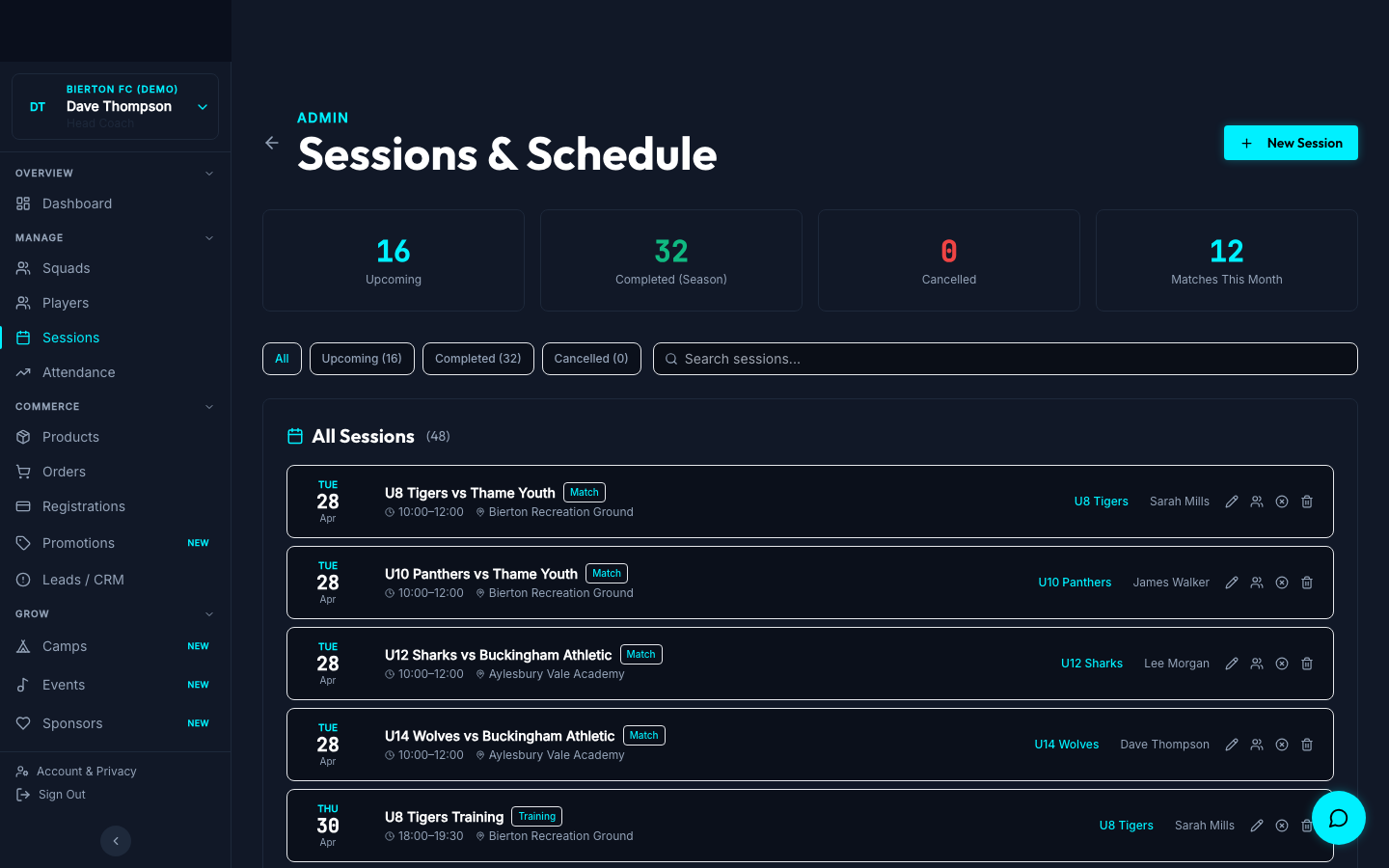
~5 minutesAdd training sessions, matches, tournaments, trials, and camps from /admin/sessions. Parents see them in their portal and get automatic email reminders the day before.
Details
Training, Match, Tournament, Trial, Camp. Each type surfaces relevant fields (matches get opponent + meet time, etc.).
Which squad. Parents only see sessions for their child's squad in their portal.
Drives the schedule view, attendance roster, and reminder emails.
Opponent, home/away, meet time, venue with postcode, coach notes (e.g. "home kit, shin pads").
Add players with position + jersey number from the squad roster.
After the match, record score + goalscorers + assists. Surfaces in the public Match Centre.
- Cancel a session with a reason and parents are notified instantly via email — no need to chase the WhatsApp group.
- Fixtures with results auto-populate /match-centre on your public-facing tenant site.
Invite Parents with a Squad Link
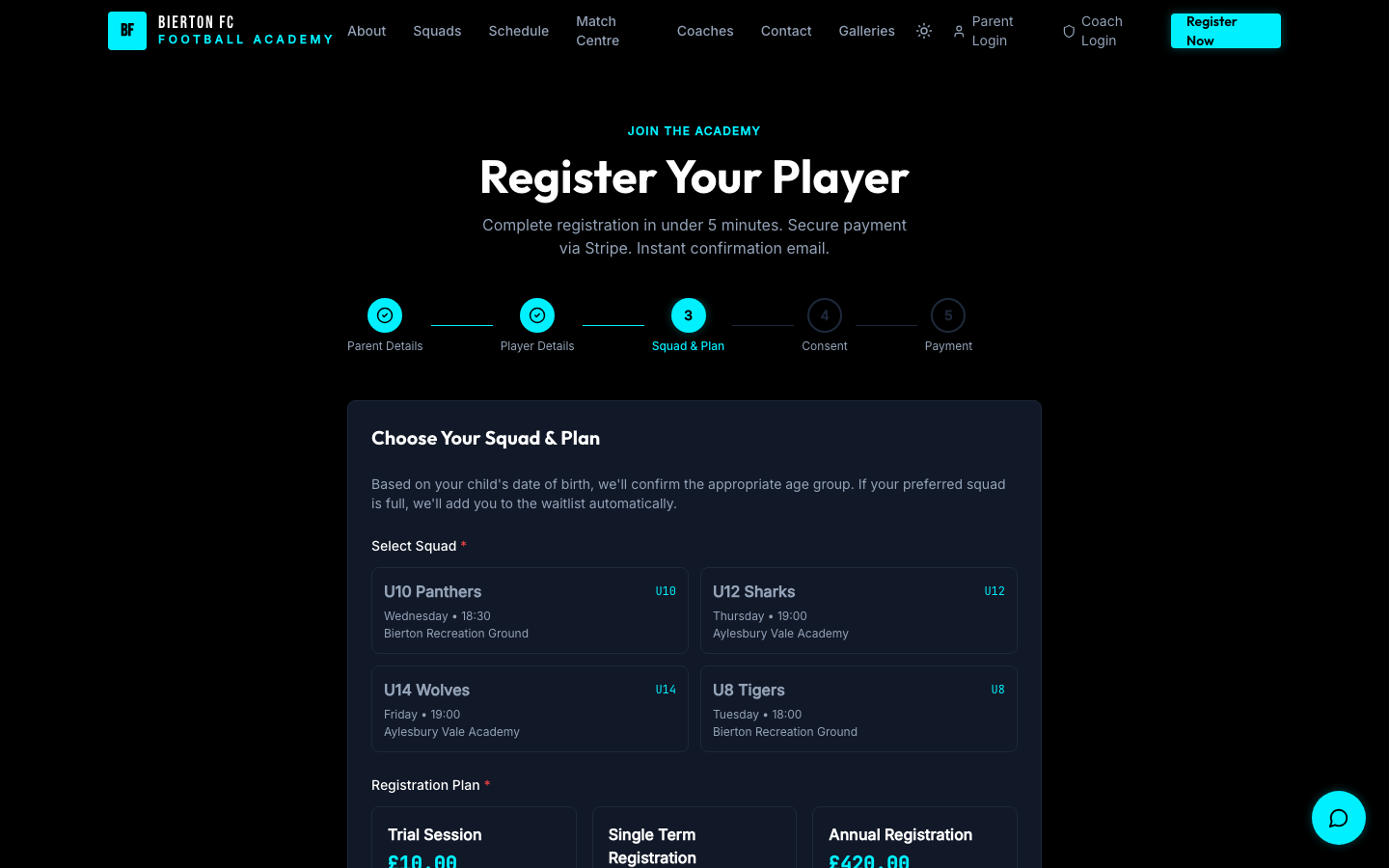
~2 minutesRegistration is invitation-only — there is no public sign-up page. In Squads, click "Copy parent link" (or download the QR) for the squad you want a family in, then send it via WhatsApp, email, your website, or a printed flyer. Each link is signed and squad-specific, so the parent opens the wizard with their squad already chosen, pays via Stripe Checkout, and lands in their portal.
Details
Name, email, phone, address, emergency contact. UK format validated.
Name, DOB, gender, optional medical info (conditions / allergies / medications). Stored encrypted.
Pick a squad, then pick from the registration plans you set up in Step 7. "Recurring" badge on subscription plans; trial-day badge if you set one.
Terms acceptance, medical consent (required), photo consent (optional). All signatures audit-logged with timestamp + IP.
Stripe Checkout opens. Card / Apple Pay / Google Pay. The parent pays exactly the plan price — nothing is added — and the card-processing and platform fees come out of that amount.
- Test the flow yourself first: register with a personal email, pay with Stripe's 4242-4242-4242-4242 test card on a test tenant, then refund yourself from the admin Orders page to see the full loop.
- Parents register one child at a time — they go through the wizard once per child, but the parent record (and login) is reused.
- Parent portal access is granted instantly on payment success.
- KYC must be done first. Until then, registration completes but the parent sees a "we'll email you a payment link" message and the order sits as `pending`.
Track Attendance
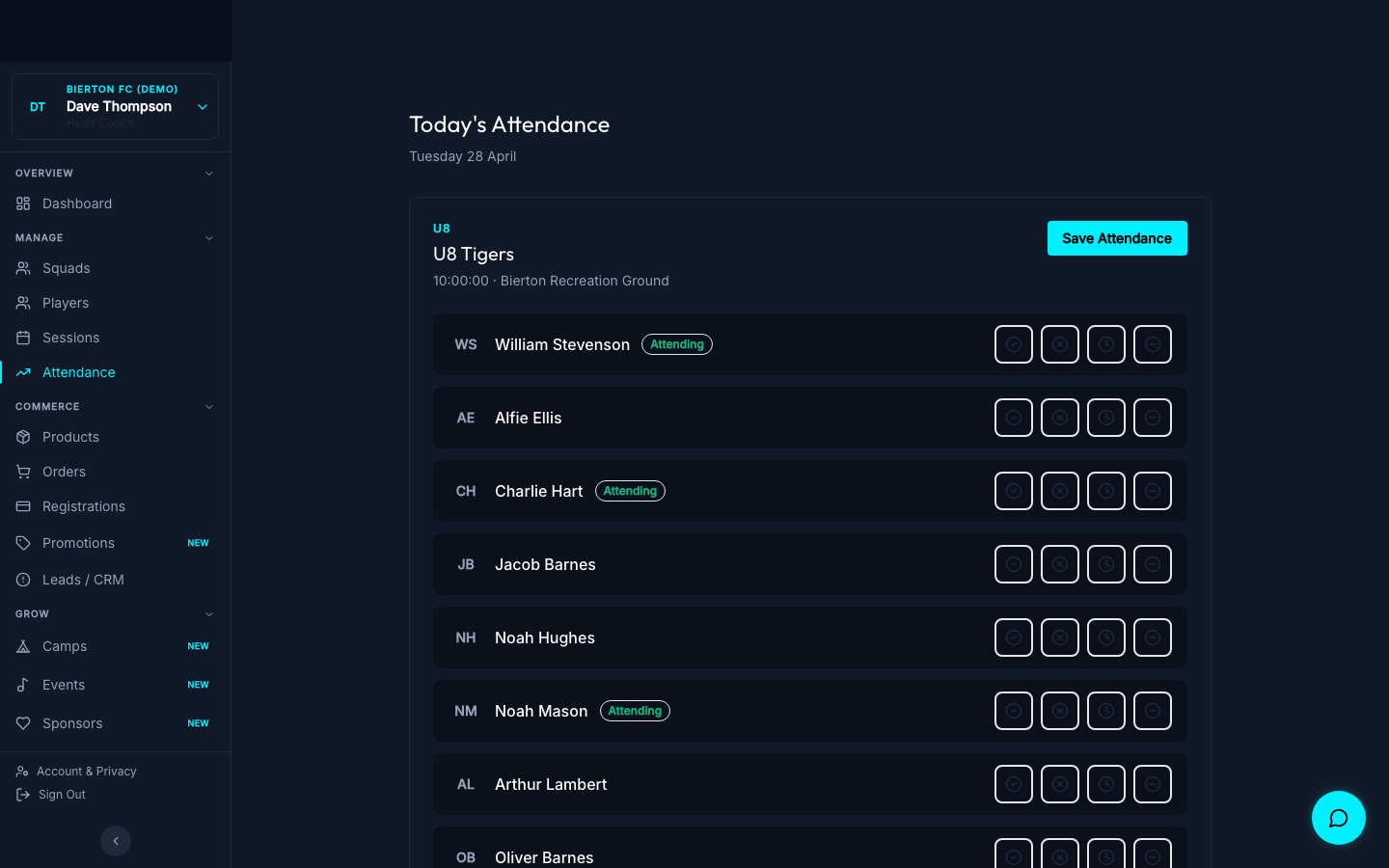
Ongoing/admin/attendance lists today's sessions. Tap players to mark present/absent — usually under a minute per session, even on a phone on the sideline.
Details
All sessions for today are pre-listed. Expand to see the squad roster.
Tap checkboxes. "Mark all present" for the common case.
Quick-update: Active, Injured, Suspended, Trialling. Persists beyond the single session.
Parents see their child's attendance % live in /portal. Updates instantly.
- Attendance feeds into Reports — squad-level rates appear on /admin/reports automatically.
- Parents can report absences in advance from their portal so you know who to expect.
Reports & Analytics
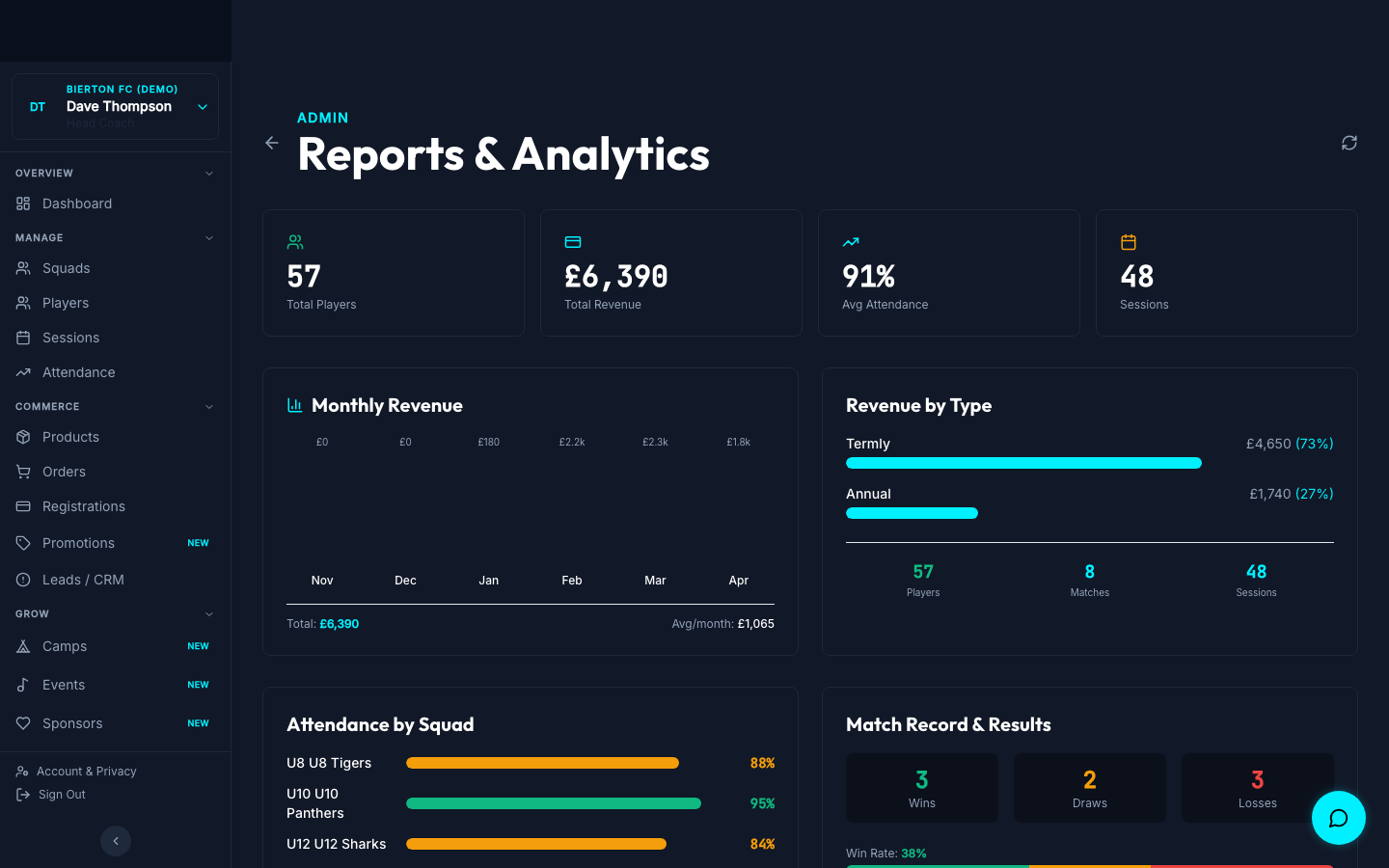
Ongoing/admin/reports is your bird's-eye view: revenue (one-off + MRR from subs), attendance rates, player totals, match results. Real-time, no exports needed.
Details
One-off revenue this season + MRR from active subscriptions. Quarterly/annual subs normalised to monthly so the headline isn't skewed.
Average % per squad. Spot which squads are engaged.
Total enrolled, active vs inactive, registration breakdown by plan type.
W/D/L record, recent fixtures, goalscorers, assists.
- Past-due subscription count shows up here too — your dunning early-warning system.
- Use the revenue breakdown to plan pricing changes for next season.
Go-Live Checklist
Tick everything before you share the registration link.
Ready to get started?
Under 20 minutes from signup to your first paid registration. We handle the Stripe and parent-portal plumbing — you focus on coaching.