
How It Works
The payment flow in three sentences.
The flow
Configure your registration types (Trial, Term, Annual) and set a price for each.
Parent fills in the registration form, picks a squad and plan, and pays by card at checkout via Stripe.
Money lands directly in your club's bank account via Stripe Connect. The parent pays the price you set, and the card-processing and platform fees come out of that amount.
Fees
Your club. The parent pays exactly the price you set — nothing is added at checkout — and the fees come out of that amount.
Stripe card processing (1.5% + 20p) and the AcademyOS platform fee (3%, or 1.5% on a payment of £1,000 or more).
You set a term fee of £150. The parent pays £150 at checkout — the card-processing and platform fees come out of that amount, so your club receives about £143.05.
Factor the fees into the price you set: you receive the headline price minus card processing and the platform fee. Set £150 and about £143.05 reaches your account.
- Parents see one price and pay exactly that. Nothing is added at checkout — no surprises.
- Set your prices with the fees in mind: you receive the headline price minus card processing and the platform fee.
Setting Up Stripe Connect
Stripe Connect links your club’s bank account to AcademyOS so payments go directly to you.
Setup steps
During setup (or from your dashboard), you'll be redirected to Stripe's hosted onboarding page.
Stripe asks for basic details: club name, address, bank account, and a form of ID. Standard KYC — takes ~5 minutes.
Enter your club's bank sort code and account number. This is where Stripe sends your payouts.
Once Stripe approves your account (usually instant), payments from parents flow directly to your bank.
- Stripe Express onboarding is simple — no paperwork, no waiting days. Most clubs are live in under 10 minutes.
- You can use a personal bank account or a club account. Stripe pays out to wherever you connect.
- Stripe payouts typically arrive in 2-3 business days after a parent pays.
- Payments won't work until Stripe Connect is set up. Make sure this is done before sharing your registration link.
- Keep your Stripe account details up to date. If your bank account changes, update it in Stripe to avoid payout failures.
Setting Your Prices
You decide what each registration type costs. Parents choose their plan during sign-up.
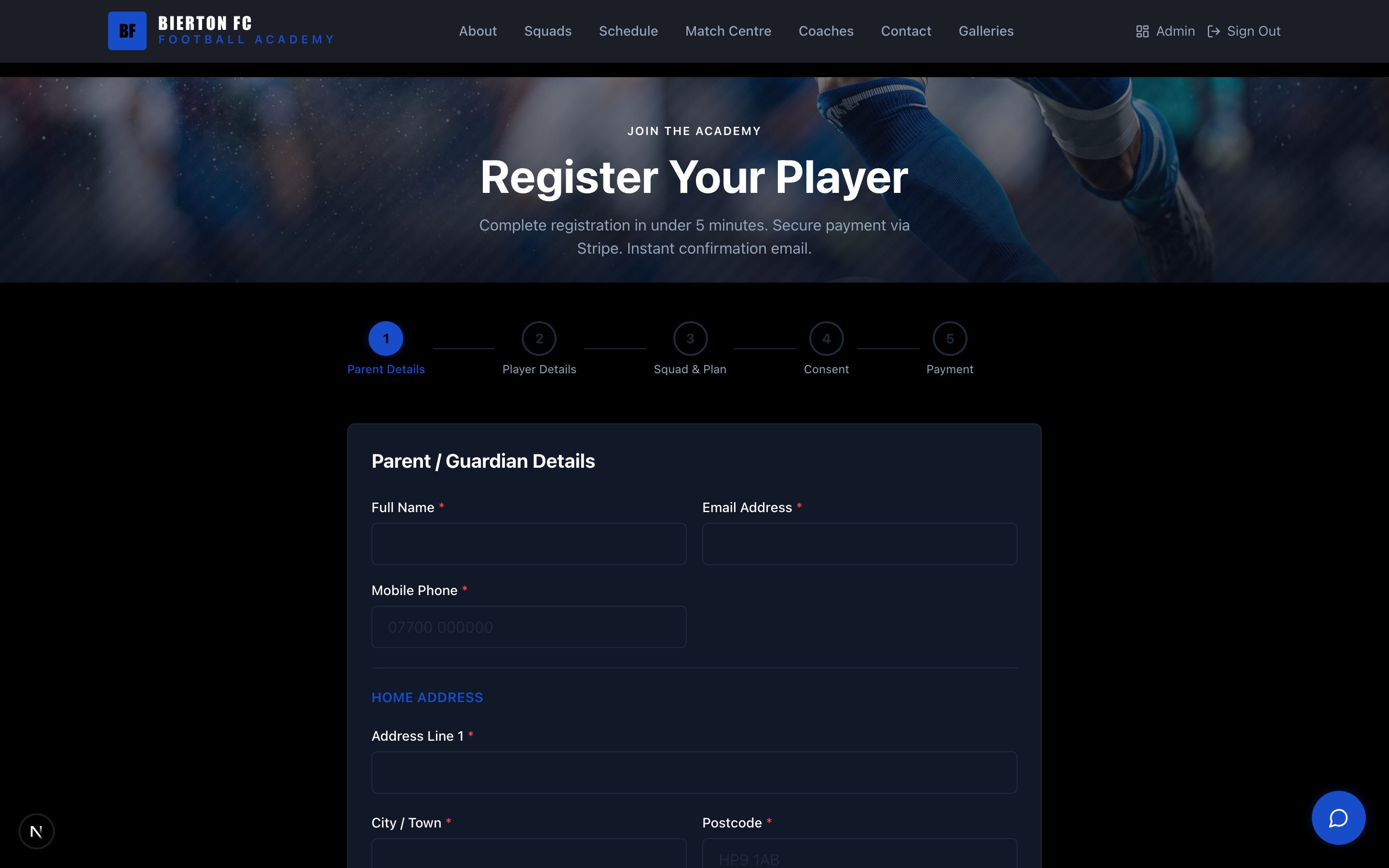
You define your own plans
From Commerce → Products, create products and tick "Show on the parent registration wizard" to surface them on /register. Pick a billing interval per plan: one-off (single charge) or monthly / quarterly / annual (recurring auto-charge via Stripe Subscriptions). Optional free-trial days on recurring plans.
A single-session taster. Typically £5–£15. Low commitment for new families.
A block of sessions (e.g. 10–12 weeks). Typically £100–£200. Most popular for grassroots clubs.
Full season upfront. Typically £350–£500. Best value for parents, most predictable revenue.
Auto-charged each month — e.g. £25/month. Parents self-serve cancel from their portal. Lower upfront friction; higher LTV if retained.
- Most successful grassroots clubs offer one-off Term and Annual side-by-side with a clear price advantage for Annual.
- Adding a monthly subscription option converts the price-sensitive parents who would have walked away from a £150 upfront ask.
- Review pricing each season using the revenue + MRR breakdown on your Reports dashboard.
- See the full registration-plan playbook in the Coach Commerce Setup guide.
Tracking Payments
Your dashboard + the Orders page give you the full picture.
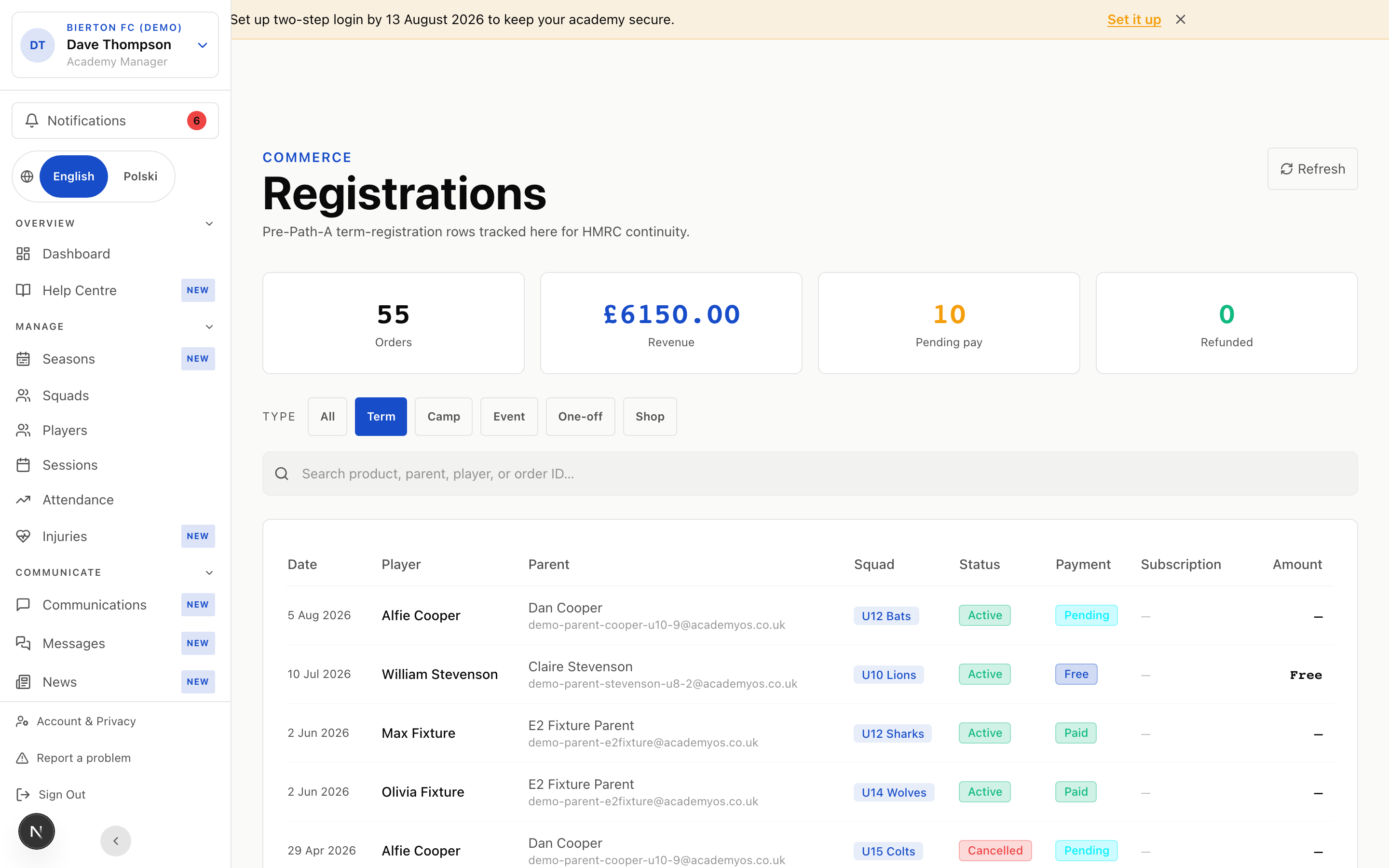
Dashboard tiles (head coach view)
Live count of paid + active registrations across all squads.
Total one-off revenue paid this season.
Monthly recurring revenue from active subscriptions, normalised so quarterly/annual don't skew the headline. Past-due count appears underneath as your dunning early warning.
How many squads are currently running.
/admin/orders — what you see
Every order: parent, product, total, payment status (Paid / Pending / Failed / Refunded), and Stripe payment ID linking out to your Stripe dashboard.
For recurring registrations: Active · £X/mo, Trial, Past due, Cancels [date], or Suspended.
Filter by product type (term / camp / event / one-off), status, payment status. Search by parent name.
Click any order → Refund. Full or partial. Stripe processes it and the parent gets an automatic refund email.
- Watch the Past-due count on your MRR tile — that's the early warning before subscriptions auto-suspend.
- For subscriptions, parents can rescue past-due payments themselves by updating their card from /portal/subscriptions. You only need to step in for one-off failures.
- Click Report on any promotion under Commerce → Promotions for the full redemption log.
Automatic Payment Reminders
No more chasing parents for money. AcademyOS handles the awkward conversations for you.
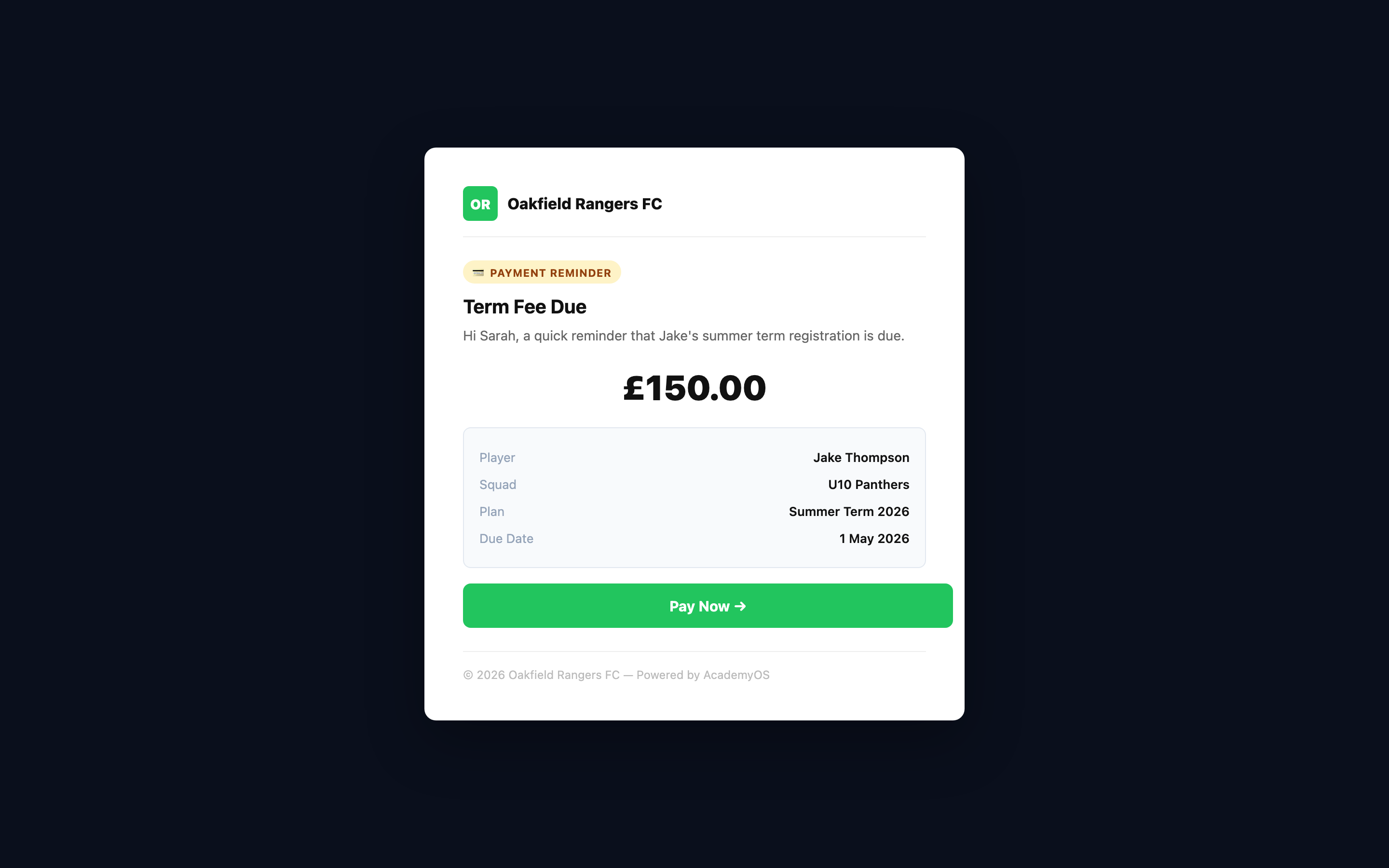
Automated emails
Sent when a payment is approaching its due date. Includes the amount, a 'Pay Now' link, and the plan details.
Sent if payment hasn't been received by the due date. Polite but clear — with a direct payment link.
Sent immediately if a card charge fails. Asks the parent to update their payment method and retry.
Sent after successful payment. Includes a receipt link and confirms the registration is active.
- Payment reminders are sent from your club's name and email — parents see their club, not a faceless platform.
- You never need to manually chase a parent for payment. The system does it automatically.
- If a parent consistently fails to pay, their registration status shows as Pending — visible in your dashboard.
What Parents See
Parents have full visibility of their payments in the Parent Portal.
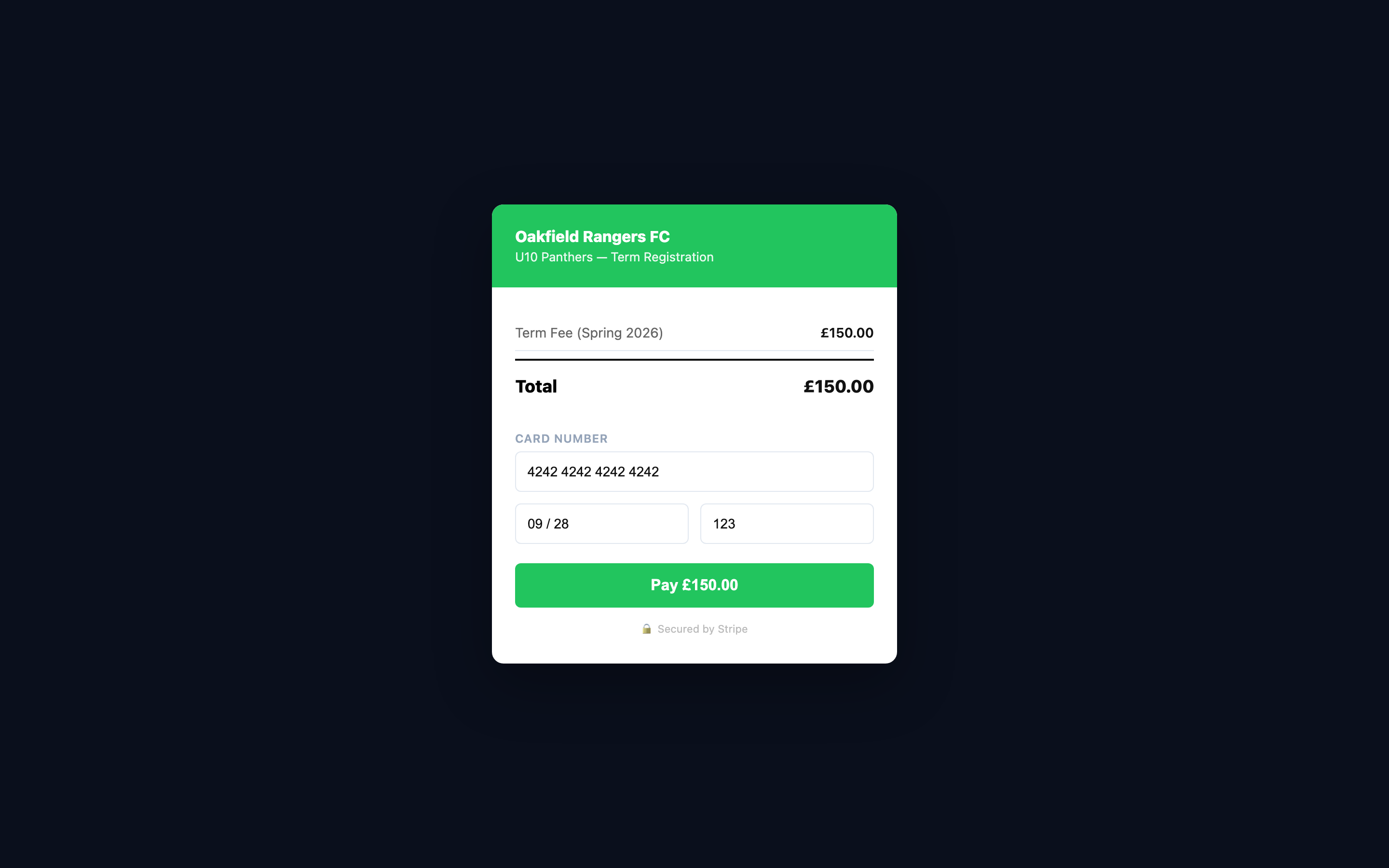
Parent portal — Payments page
Any unpaid or upcoming amounts shown prominently with a 'Pay Now' button.
Full list of past payments with date, amount, status, and a downloadable receipt.
Their current registration: squad, season, registration type, sessions included, and per-term cost.
One-click payment via Stripe. Card details are saved for returning parents.
- Parents can pay outstanding balances directly from their portal — no need to send them a separate link.
- Receipts are auto-generated and downloadable. Useful for parents who expense through employers.
Stop chasing payments
Set your prices, connect Stripe, and let parents pay online. Money in your account, no awkward conversations.