
Create the Match
~2 minGo to Admin → Sessions and click “+ New Session”. Set the session type to Match.
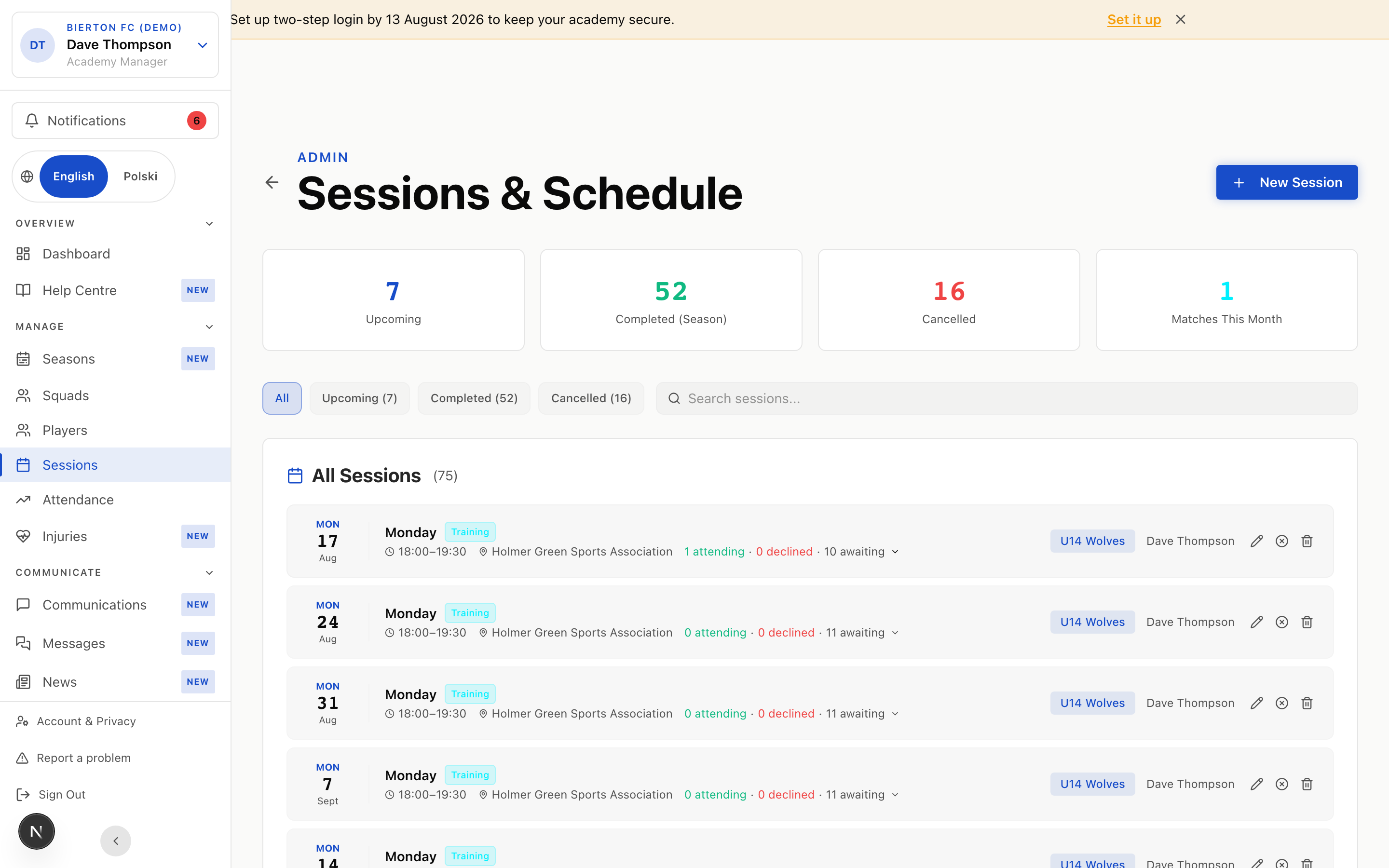
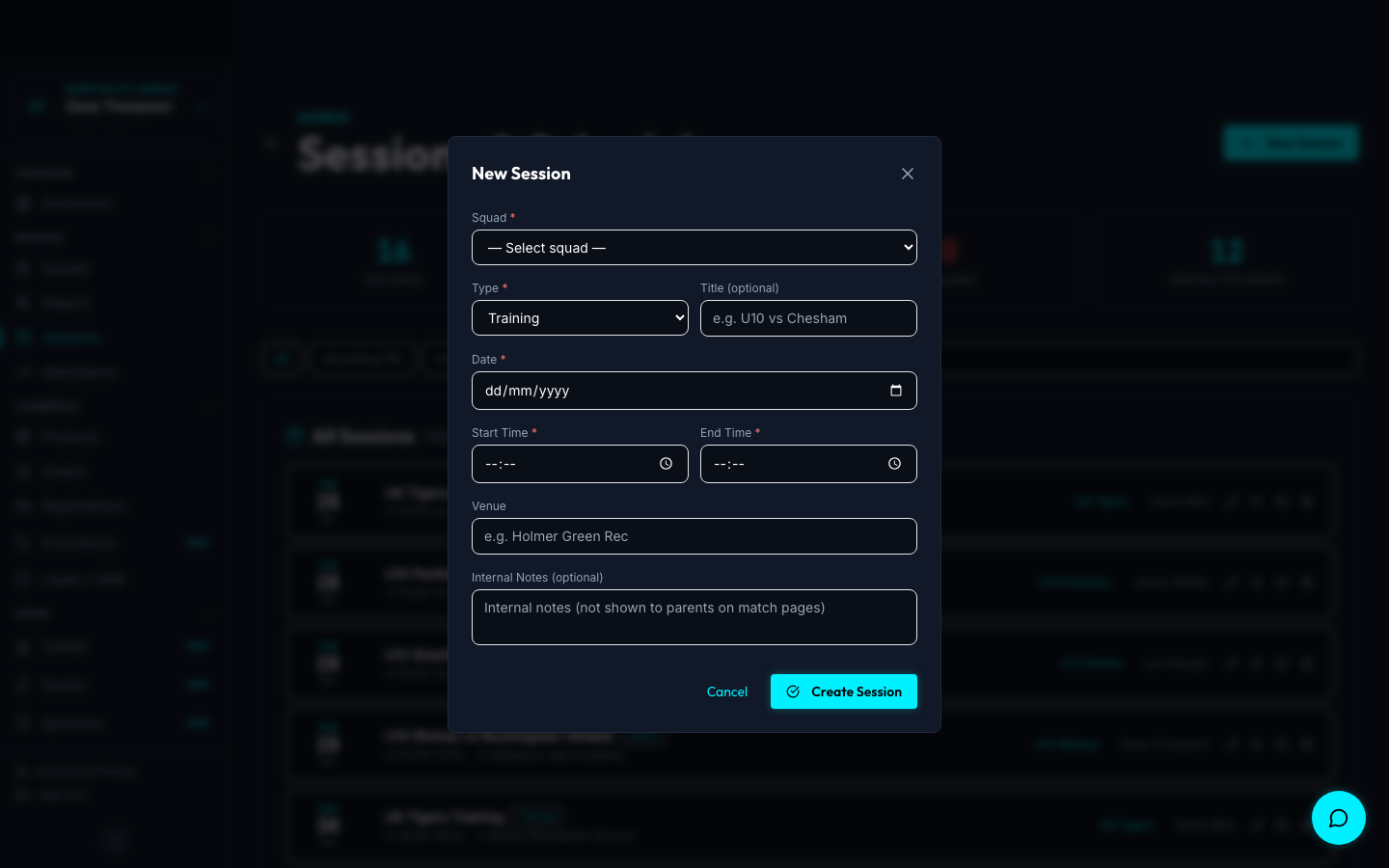
Fields explained
Which age group is playing — e.g. U10 Panthers. Parents in that squad will see this fixture in their portal.
Select 'Match' from the dropdown. This unlocks the match-specific fields below.
Auto-generated as 'Match vs [Opponent]' — or type your own, e.g. 'League Cup Semi-Final'.
Match date and start time. An end time is optional but useful for parents planning pick-up.
The opposition team name — e.g. 'Marlow Juniors'. Shown to parents and in the Match Centre.
Toggle whether you're playing at home or away. This changes the fixture display order in results.
Where the match is being played. For away games, enter the opposition's ground.
Full address so parents can find the ground. Shown as a clickable link in the parent portal.
When players should arrive — usually 30-45 minutes before kick-off. Parents see this prominently.
Free text for kit instructions, parking info, directions, etc. E.g. 'Home kit, shin pads required. Parking on the left past the clubhouse.'
- Set the meet time 30-45 minutes before kick-off — parents will thank you.
- Match notes are visible to parents in their portal. Use them for kit colour, parking, and anything specific to this fixture.
- If you create fixtures in bulk at the start of the season, parents see the full schedule immediately.
- You must have at least one squad created before you can schedule a match.
- Double-check the venue postcode for away matches — a wrong postcode means lost parents.
Select Your Lineup
~2 minAfter creating the match, open it and click “Edit Lineup” to pick your starting players.
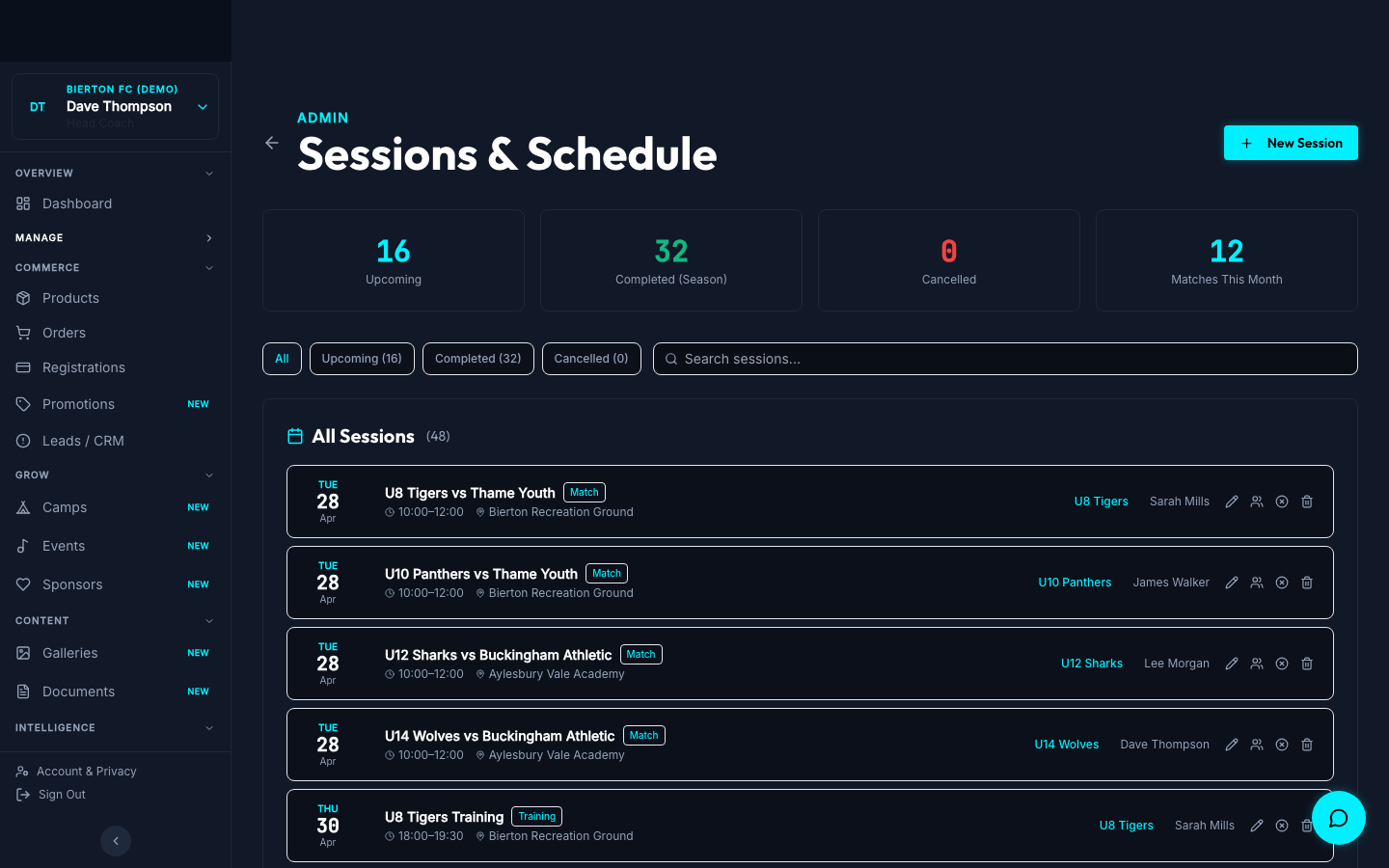
Details
Tick the checkbox next to each player you want in the lineup. All players in the squad are listed.
Assign each selected player a position — GK, CB, LB, RB, CM, LW, RW, ST, etc. Free text field.
Assign the shirt number for this match. Pulls from the player's default if set.
- You can edit the lineup right up until match time. Changes are reflected instantly.
- Players marked as Injured or Suspended won't appear in the lineup selector.
- If you want to give every player game time, note substitution plans in the match notes.
Matchday
During the matchOn the day, parents see the fixture in their portal. You focus on the match — AcademyOS handles the rest.
What parents see
The match appears with date, kick-off time, meet time, venue (clickable for maps), and your match notes.
Parents receive an automated email reminder the day before the match with all the details.
If you cancel the match (e.g. waterlogged pitch), parents are notified immediately by email with the reason.
- Mark attendance on your phone pitchside — it takes 30 seconds per squad.
- If a parent reported an absence in advance, it's already flagged on the attendance sheet.
Record the Result
~1 minAfter the match, open the session and click “Enter Result” to log the score and individual stats.
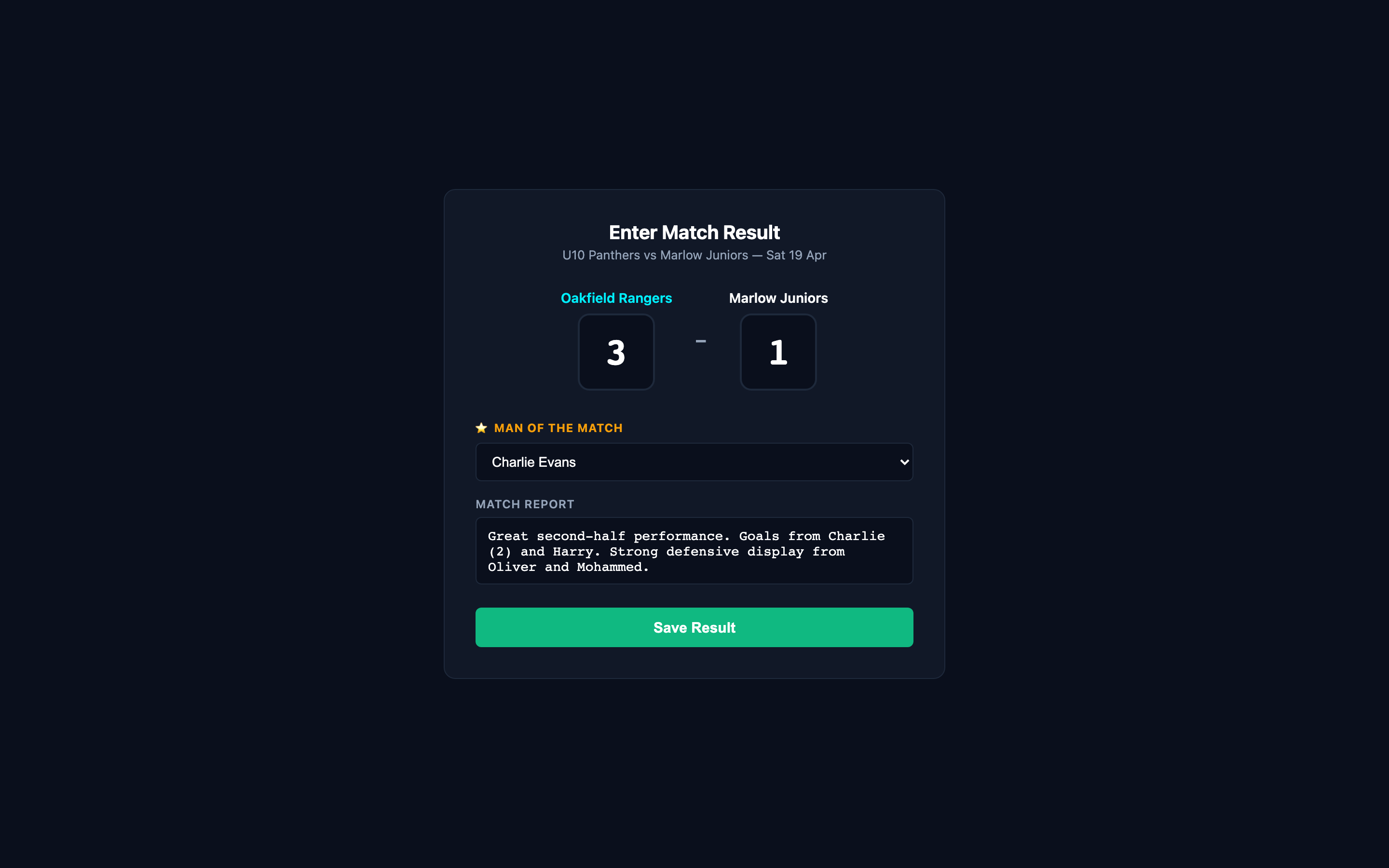
Fields explained
Enter the final score. If you were the home team, your score goes on the left.
Select one player from the lineup as MOTM. This is tracked on their player profile.
Optional free-text summary of the match. Visible to parents in the Match Centre. E.g. 'Great second-half comeback. Goals from Jake (2) and Ollie.'
- Results feed into the Reports page automatically — win/draw/loss record and season stats.
- The Match Centre on your public club page shows all results. Great for parents and committee members.
- Try to enter results on the same day while they're fresh. It takes less than a minute.
- Results are visible to parents once saved. Double-check the score before confirming.
Track Player Performance
~3 minAfter entering the result, rate each player’s performance. This data powers reports and AI-generated summaries.
Player metrics per match
Log how many goals and assists each player recorded. Tracked cumulatively on their profile.
How hard the player worked — pressing, running, commitment.
Ball control, passing accuracy, first touch quality.
Communication, positioning, supporting teammates.
Sportsmanship, response to setbacks, coachability.
One player per match can be marked as Man of the Match.
- Even quick 1-5 ratings after each match build a powerful dataset over a season.
- This data is used by AI to generate end-of-term player reports — the more you log, the better the reports.
- Players and parents don't see the raw 1-5 scores — they see the written reports generated from them.
Ready to create your first fixture?
Go to Sessions in your admin dashboard and click “+ New Session”.